
Plint Subtitler: Flags
Plint Subtitler: Flags
In Subtitler, flags can be used to mark subtitles. You can mark subtitles with one or multiple flags.
Add a Flag to a Subtitle:
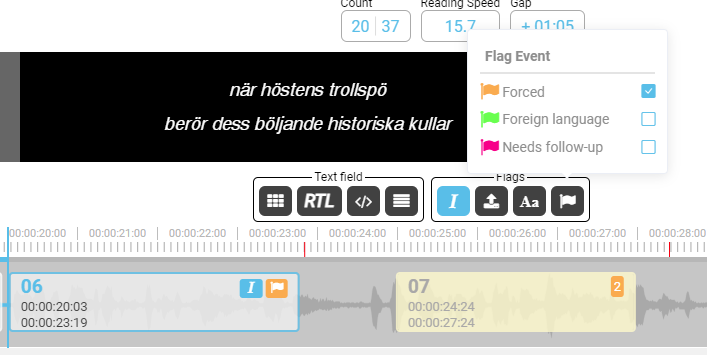
To add a flag to a subtitle, first focus on the subtitle. You will find the flags among the buttons below the text field. Click on the flag icon, and a menu will appear where you can select the flags you want to add to the subtitle. Multiple flags can be chosen for each subtitle. Once selected, the flag will appear as a symbol on the subtitle in both the Timeline and List views.
Add Flags to Multiple Subtitles:
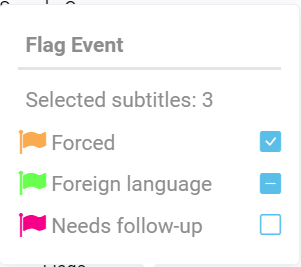
You can apply flags to multiple subtitles at once. First, select the subtitles you want to affect. (You can read how to select subtitles here). When working with multiple subtitles, there are different checkbox statuses to note:
- If the checkbox has a checkmark, all selected subtitles currently have this flag.
- If the checkbox has a dash, one or more of the selected subtitles lack this flag. Clicking the checkbox when the dash is visible will add the flag to the subtitles that lack it.
Filter:
You can filter subtitles by flags. The filter can be found under the List view. In the filter, you can choose one, several, or no flags. Only the filtered subtitles will be visible in the list. In the Timeline, all subtitles are visible, but those outside the filter will be grayed out. Using the shortcut "Jump Subtitles" will navigate between the filtered subtitles only.

Default Flag:
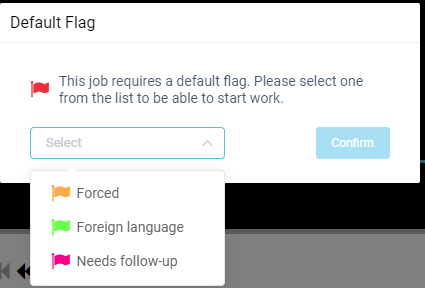
For certain tasks, a specific flag is required. In such cases, you will be prompted to select a flag when starting the task. When you create a subtitle, the selected flag will be automatically added to each new subtitle. This selection is saved at the job level, so the next time you or another user accesses the same job, this flag will still be the default. To change the default flag, go to Properties (File >> Properties >> General) for the job. Only new subtitles will receive the new flag; previously created subtitles will retain their original flags.
Import:
When importing subtitles, you can choose to import subtitles with a selected flag or flags. If a default flag is set for the job, it will be pre-selected during import.

Report Tool Rule:
If the rules are set to report on flags, they will appear when running the report tool. The rule checks for either flagged subtitles or subtitles without flags.

Restriction on Status Change:
Depending on the rule settings, you may be prevented from changing the status if the rule is not met. If this happens, you will be prompted to filter the list to resolve these issues. Once resolved, you will be able to change the job's status.
