
The Filezone
The Filezone is where (almost) all files linked to a project can be found, by users with Workbench or Manager access. This includes the result of File upload jobs, Media upload jobs, Online review jobs and files generated with the built-in rendering engine. You can also upload files directly to the Filezone.
The exception is the JSON work files created by the online editing tools, since these belong more to the category data. These won't be found in the project Filezone. However, deliverables such as SRTs created from these files, will be found in the Filezone.
File modes
There are four basic modes which determine how a file behaves, or how it was delivered.
-
Standard
- A file which can be downloaded and accessed from Plint.
- This is what you get with File upload jobs, and the default setting when you just upload one or more files to the Filezone.
-
Media
- A file meant to be opened in the Online editors.
- This is the mode you get when you upload a video using Media upload jobs.
-
Online review
- This is the mode you get when you upload a video using Online review jobs
-
Copy for delivery
- This is the mode you get when you generate a video using the built-in video rendering tools
File categories
In order to organize and categorize files in additional ways, you can use File categories. The list of available categories is maintained under Tools & Data. File upload jobs can then be set to require that the uploader specifies the category of the individual files. Files can then be filtered out in the Filezone based on category.
File visibility settings
Plint has several options to ensure that the right users have access to files. It is important to understand the following concepts:
- Visible on Files tab
- The Files tab belongs to the info page about Jobs. If a Resource user needs access to a file in order to do a Job, this is where it has show up.
- Visible to child projects
- Parent projects can contain files which are used across multiple projects. Read more here.
- Visible to Clients in Filezone
- Users with login type "Client" have access to a limited, simplified version of the Filezone for their orders. If they upload a file to that area, this setting will be automatically set to "Yes". If you want to use the Filezone for example to deliver files to a client, this is the right toggle.
Using the Filezone
Click the icon in the project bar to access the Filezone of a project. As a project can potentially contain thousands of files, the first section is dedicated to filtering. In the example below, filtering is done on filename.
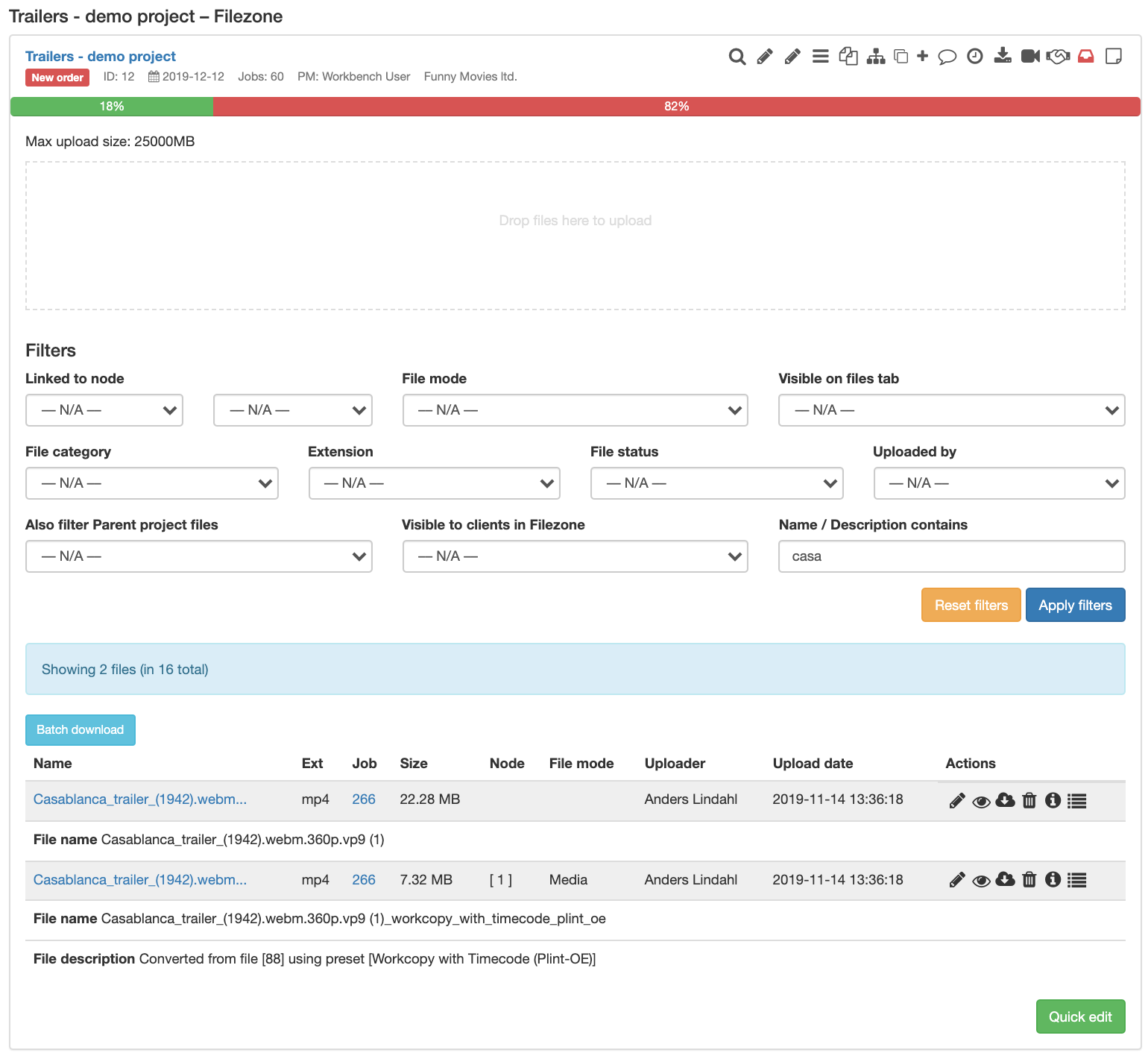
- In order to edit the general properties of a file, click the "Pen" icon.
- Click the "Eye" icon for a preview.
- The built-in file viewer supports most audio and video format but is meant for quick checks, not advanced review or editing.
- Most media files are also scanned for metadata, such as resolution and framerate, which can be accessed by clicking the "Information" icon.
Editing a single file
(Please note that editing in this case means editing the information about files and how they are used in Plint.)
In a good workflow, editing the details of delivered files and media is usually not necessary as this is normally handled at the point of delivery. If you do need to link a file to a certain part or language, or change its visibility settings, click the pen icon. This form also offers a file preview.

Editing multiple files
You can also click the "Quick edit" button (perhaps after filtering the list) to edit the properties of multiple files in a single form. This mode does not support all kinds of information, however.
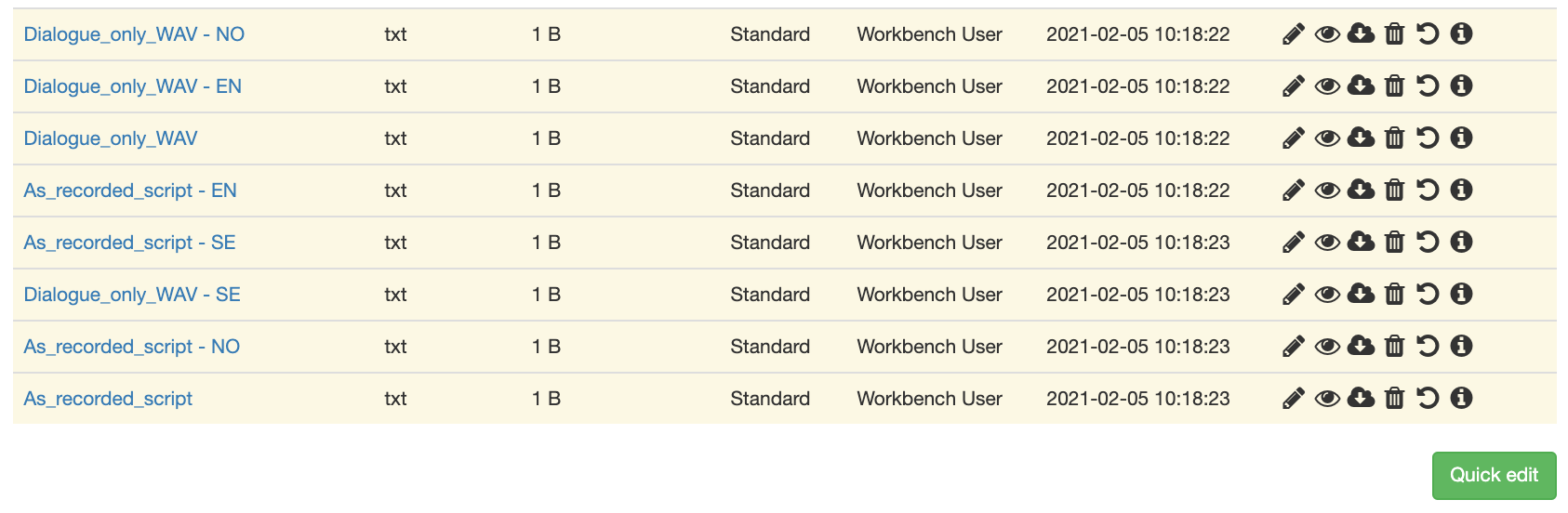
Make your changes and click "Submit" to store them for all the files.

Downloading files from the Filezone
You can download single files by just clicking the download icon in the list. If you need to download multiple files, you can also use the "Batch download" button, located above the list.

Please note that you will need to select which files to download. Click the top checkbox to select all visible files.

When you click "Download selected" the system will package all the files in a simple ZIP file and send it to the browser for download.