
Plint Subtitler: MQM mode
When reviewing subtitles in Plint Subtitler, you may have access to an additional toolset called the "MQM mode". In this mode, Plint Subtitler will have a somewhat different layout and slightly different editing rules apply.
The purpose of MQM mode is to ensure that all changes are accompanied by an explanation and report, which is handled in the form of "Issues". Issues let you categorize the error you found (and corrected) and also determine the severity of the error. The error types are standardised, allowing for measuring the result across different platforms.
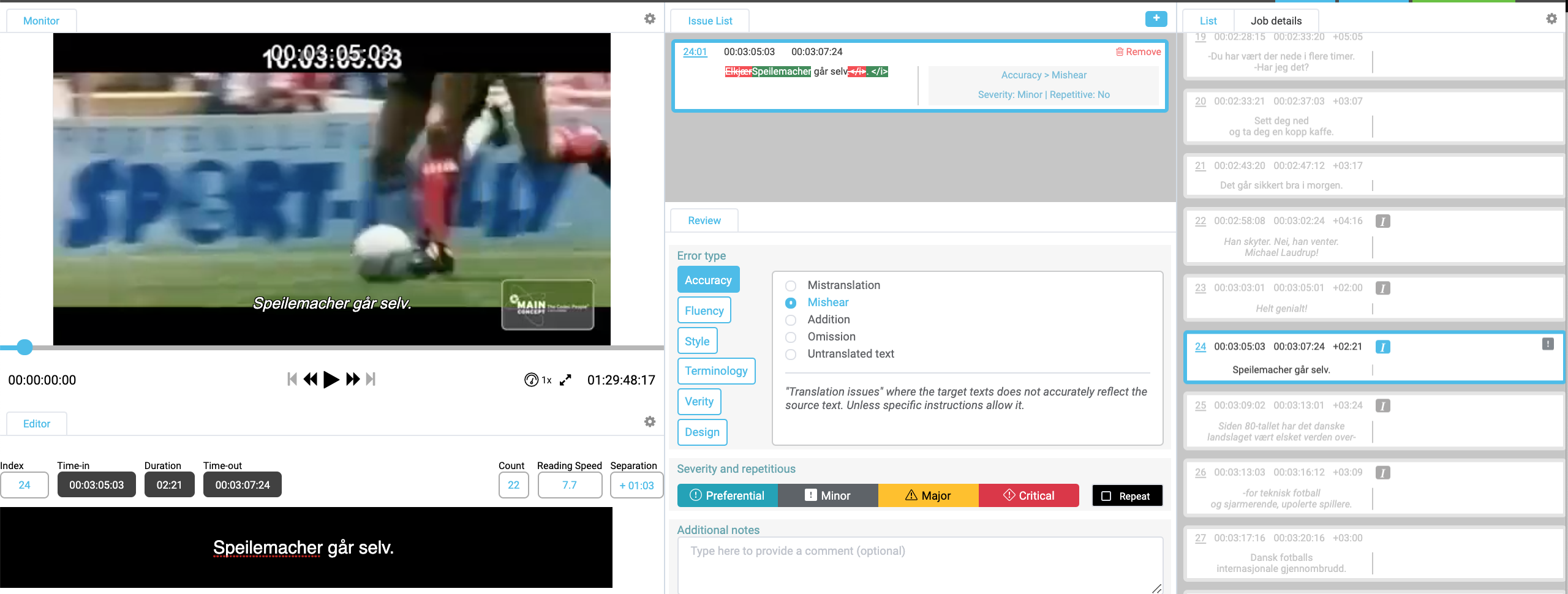
How to revise in MQM mode
- When you spot an error, click the + sign above the issues list
- Select an error type and a subcategory
- E.g. Accuracy / Mishear
- Please note that you cannot edit the text until you have select an error type
- Select a Severity
- Please refer to information from your project manager or quality expert if unsure about which severity level is relevant in a specific case
- If the error has occurred previously in the same translation, the Repeat checkbox can be used.
- This may affect the final score
- Optionally, add a comment to explain the change
FAQ
- What if there are multiple errors in the same subtitle?
- Just click the + sign and add one more Issue
- How can I adjust the layout to, for example, enlarge the monitor?
- Just as in normal subtitling mode, you can zoom in and out using browser shortcuts and resize certain windows
- The current layout will be stored and reused for your next MQM job
- How do I delete an issue?
- Click the red dustbin icon
- How can I easily spot flagged subtitles?
- In the subtitle list, subtitles with attached issues will be shown with an icon at the right-hand side
- The icon represents the selected Severity