
Plint Subtitler: menus
Most of the common functions in Plint Subtitler are accessible through the top menus. The following list summarises and clarifies their functions.
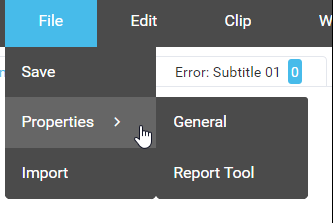

The File menu
-
Save - saves the file.
- (The app also autosaves about every other minute.)
- General - For setting the minimum frame separation between subtitles, maximum characters per line and history states.
- Please note that job settings may limit the formats available here.
The Edit menu
- Undo - Undoes the last action.
- Redo - Redoes the last undo. I.e. if you by mistake chose to undo the removal of a subtitle block, by pressing redo this subtitle block will be added again.
- Go to - Displays the Go to subtitle number [ ] dialogue, where you can chose which subtitle block you want to go to and also if you have a specifik time you want to go to.
-
Find/Replace - find recurring instances of words or strings and batch replace them
- this function finds instances of the search string in subtitle text, reference text and comments
- however: replace can only be applied to the subtitle text
The Clip menu
- Add - Adds clip at the beginning or at the current time.
-
Split - Splits the subtitle into two separate clips.
- (Preceeded by a dialogue controlling splitting behaviour)
- Set - Set in time to current time and Set out time to current time.
-
Merge clip - Merges the clip with the next subtitle.
- It is also possible to merge with the previous subtitle - please check the shortcut settings.
- Renumber all clips - Ensures that the clips are renumbered from 1.
- Remove - Removes the current subtitle.
-
Swap/copy track - move or copy all text from one type of field to another.
- For example, copy the entire reference text into the editable subtitle fields.
The Review menu
-
Spell check
- Perform a spell check on the entire file and suggests alternative words where possible errors are found.
- Supported languages are continually added.
-
Report tool
- Check the entire file for errors / inconsistences based on job/project settings.
- Typically, timing errors, exceeded character counts and such.
- Report profiles are handled centrally and can not not be adjusted from within the editor.
- Check the entire file for errors / inconsistences based on job/project settings.
The Workspace menu
- Lock tools - Locks the workspace. To move panels around, uncheck this box. (In development)
- Auto Focus clip - As you play the video, the text in the subtitle editor field will change as the marker moves along the time line
- Audio scrub - As you jump frames, no matter how many, you will hear part of the audio
-
Switch to basic mode - Shows a different editor layout
- This layout, among other things, shows the file used for the reference text on a separate timeline.
- This can be useful for comparing changes to the reference after translation work has begun.
The Settings menu
- Shortcuts - Edit the shortcut settings.
The Help menu
- Redirects you to the help section.