Skip to main content
Plint Subtitler: menus
-
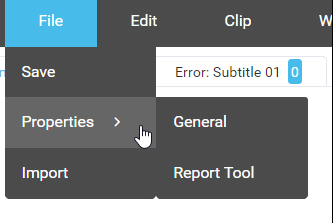
Save - saves the file. The app autosaves about every other minute.
- Properties
-
General - Setting about the minimum frame separation between subtitles, maximum characters per line and history states.
- The Report tool
-
Import - allows you to import a subtitle file to edit.
-
Undo - Undoes the last action.
-
Redo - Redoes the last undo. I.e. if you by mistake chose to undo the removal of a subtitle block, by pressing redo this subtitle block will be added again.
-
Go to - Displays the Go to subtitle number [ ] dialogue, where you can chose which subtitle block you want to go to and also if you have a specifik time you want to go to.
-
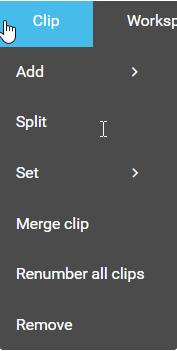
Add - Adds clip at the beginning or at the current time.
-
Split - Splits the subtitle.
-
Set - Set in time to current time and Set out time to current time.
-
Merge clip - Merges the clip with the next subtitle. It is also possible to merge with the previous subtitle - please check the shortcut settings.
-
Renumber all clips - Ensures that the clips are renumbered from 1.
-
Remove - Removes the current subtitle.
-
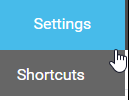
Shortcuts - Edit the shortcut settings, please see separate chapter for setting your shortcuts.
- Redirects you to the help section.
