
Plint Subtitler: edit buttons and options
Edit buttons
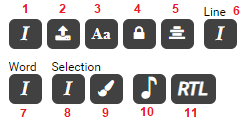
- Set italics for the whole subtitle.
- Raise the subtitle to the upper part of the screen.
- Set capital letters for the whole subtitle.
- Forced. A flag affecting subtitle visibility and behaviour.
- Text alignment left, center or right.
- Set italics for the line in which you have placed the cursor.
- Set italics for the word in which you have placed the cursor.
- Set italics for the section you have marked. Can be several words, parts of a sentence etc.
- Set the color of the section you have marked.
- Add a music note to the subtitle block. This is used to mark singing or songs, when required.
- Sets the reading order from right to left. Applicable for certain languages such as Hebrew.
Options

- Separation 1 - Number of seconds and frames between the beginning of the selected subtitle, and the end of the previous subtitle block. In this example the previous subtitle ends 10 seconds and 2 frames before the selected subtitle starts.
- Index - The subtitle block's number. The subtitles are in chronological order. NB! If you are doing template creation, you need to renumber all subtitles before marking the job as Done. Go to the Clips menu, and "Renumber all clips", which ensures that all subtitles are numbered from 1.
- Time-in - At what hour, minute, second and frame the subtitle starts. In this example the subtitle starts at 37 seconds and 11 frames from the beginning of the video.
- Duration - How long the subtitle is seen on screen. In this example for 3 seconds and 4 frames.
- Time-out - At what hour, minute, second and frame the subtitle starts. In this example the subtitle ends at 40 seconds and 15 frames from the beginning of the video.
- Count - Displays the character count for each line.
- Reading speed - Displays the reading speed (characters per second).
- Separation 2 - Number of seconds and frames between the end of the selected subtitle, and the beginning of the next subtitle block. In this example the selected subtitle ends 11 frames before the next subtitle starts.
SceneShot changes

SceneShot changes in the time line are indicated by red lines.lines on the timeline . Please note that some scenesbot changes may be "false" and do not indicate a sceneshot change (it could sometimes be someone walking by close to the camera, which the editor perceives as a sceneshot change).